
Introduction
CloudPanel is a popular control panel for managing websites, PHP applications, and cloud servers. However, keeping your websites secure requires more than updating your applications. Your server’s operating system, installed PHP versions, PHP-FPM services, and CloudPanel control panel must also be maintained.
A community guide published by Brugman explains how to address a PHP security issue affecting certain CloudPanel configurations.
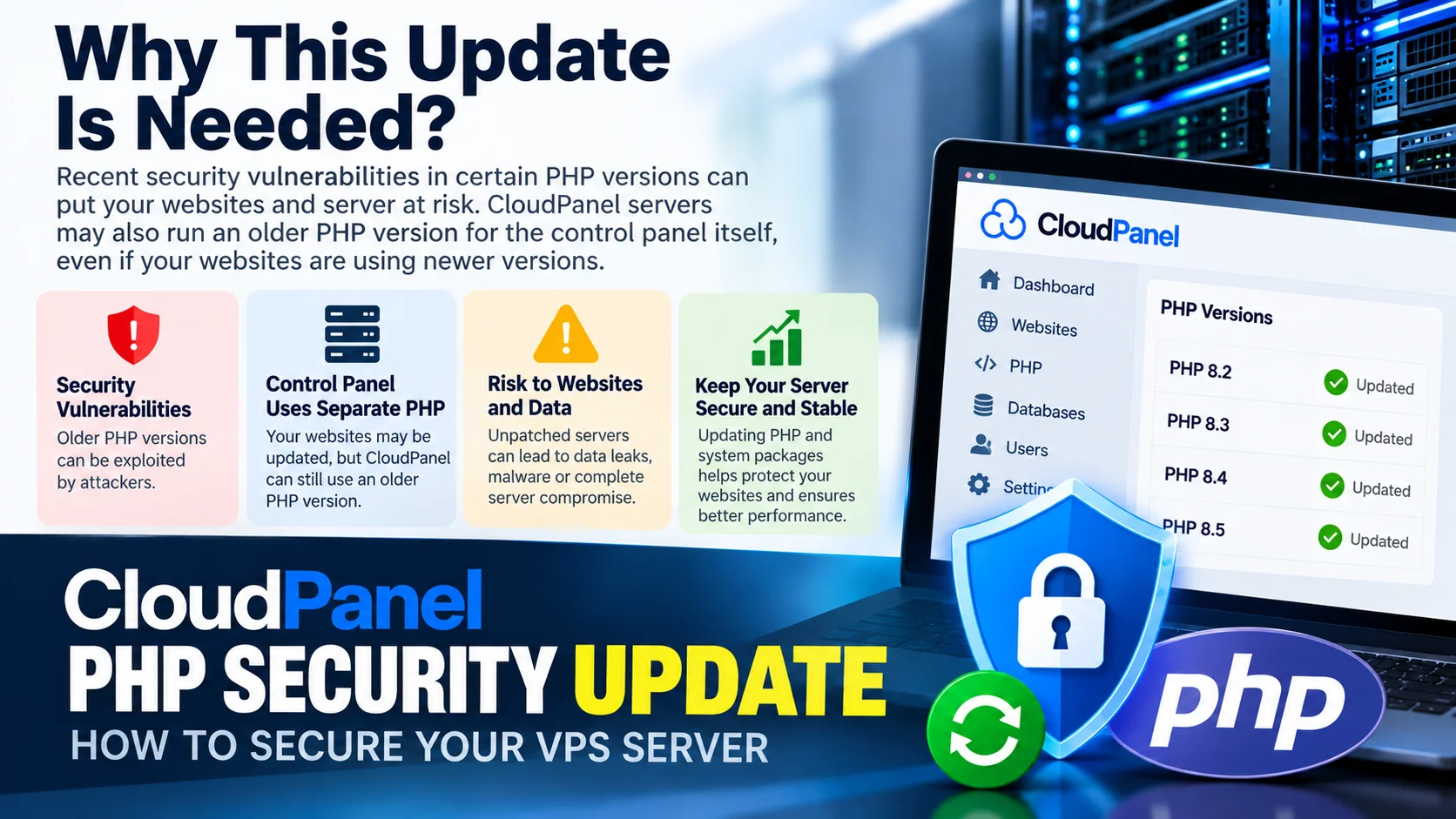
One important point is that updating the PHP version used by your websites does not necessarily update the PHP runtime used by the CloudPanel control panel itself.
In this guide, you will learn how to check PHP versions, install available security updates, verify services, and improve the security of your CloudPanel VPS.
Why Is a CloudPanel PHP Security Update Important?
PHP vulnerabilities can expose websites and server applications to security risks. Depending on the vulnerability and configuration, attackers may exploit vulnerable software to compromise applications or services.
CloudPanel servers can run multiple PHP versions simultaneously. For example, your websites might use PHP 8.3 or PHP 8.4 while the control panel uses a separate PHP runtime.
Updating only the website PHP versions may therefore leave another component vulnerable.
A complete security check should include:
- Operating system security updates
- Installed PHP versions
- PHP-FPM services
- CloudPanel control panel runtime
- Firewall and administrator access
- Website and database backups
Step 1: Back Up Your CloudPanel Server
Before making security changes, ensure that you have a recent backup.
Your backup should include:
- Website files and application code
- MySQL or MariaDB databases
- Essential configuration files
- A recovery plan for restoring services
For production servers, consider taking a VPS snapshot in addition to your regular backups.
Always verify that your backups are usable before performing changes that could affect live websites.
Step 2: Check for Available System Updates
Connect to your server using SSH with an account that has administrative privileges.
Run the following commands to refresh the package lists and check available updates.
sudo apt update
sudo apt list --upgradable
The first command refreshes the package information. The second displays packages that can be upgraded.
Review the output before proceeding, particularly if your server hosts business-critical websites.
Step 3: Install Available Security Updates
On compatible Ubuntu or Debian-based systems, use the APT package manager to install available package updates.
sudo apt update && sudo apt upgradeReview the packages to be upgraded and any prompts before confirming the operation.
Schedule maintenance when necessary, especially if services need to restart.
Important: Updating operating system packages does not automatically mean that every PHP runtime or application has been configured correctly. Verification is still necessary.
Step 4: Verify Installed PHP Versions
Check the PHP versions installed on your server.
For example:
php8.2 -v
php8.3 -v
php8.4 -v
php8.5 -v
Run only the commands corresponding to PHP versions installed on your server. An error for a missing version does not necessarily indicate a security problem.
The referenced community guide lists the following PHP release versions:
| PHP Version | Release Listed in the Guide |
|---|---|
| PHP 8.2 | 8.2.35 |
| PHP 8.3 | 8.3.36 |
| PHP 8.4 | 8.4.27 |
| PHP 8.5 | 8.5.12 |
These versions are reproduced from the referenced guide and should not be treated as a guarantee of the latest available security releases. Check current vendor advisories and your operating system’s package information before deciding which version to install.
Step 5: Check PHP-FPM Services
CloudPanel allows websites to use different PHP versions. Each website may depend on a particular PHP-FPM service.
Check the relevant services using commands such as:
systemctl status php8.2-fpm
systemctl status php8.3-fpm
systemctl status php8.4-fpm
Adjust these commands according to the PHP versions installed on your server.
Before disabling or removing an older PHP version, verify that no website, application, or scheduled task depends on it.
Removing a PHP version without checking dependencies may cause websites to stop working.
Step 6: Check the PHP Runtime Used by CloudPanel
One of the most important points in the referenced guide is the PHP runtime used by the CloudPanel control panel itself.
The guide discusses a configuration in which the clp-php-fpm service uses PHP 8.1 and describes switching that service to a patched PHP 8.2 runtime as a mitigation.
This is different from changing the PHP version assigned to a website.
First, check the control panel service:
systemctl status clp-php-fpmIf your installation is affected, review the original guide and confirm your CloudPanel version, installed PHP-FPM binaries, and compatibility before changing any configuration.
The guide describes using a systemd service override to change the PHP-FPM executable used by the control panel. This is an advanced administrative procedure.
Before making such changes:
- Confirm that your installation is affected by the vulnerability.
- Verify the proposed PHP-FPM version is installed.
- Back up the existing service configuration.
- Confirm compatibility with your CloudPanel installation.
- Test the change in a non-production environment if possible.
- Verify that the CloudPanel interface and hosted websites work afterward.
Do not blindly apply a service override to every server. Incorrect configuration can make the control panel unavailable.
Important: Check for an official CloudPanel update or vendor-supported fix before applying a community workaround.
Step 7: Improve CloudPanel Server Security
Updating PHP is only one part of protecting your server. You should also review administrative access and network security.
Use a Dedicated Control Panel Domain
Consider using a dedicated domain for accessing CloudPanel instead of relying solely on an IP address and port.
A custom domain improves administration convenience but does not replace authentication or security updates.
Restrict Unnecessary Ports
Review your firewall configuration and expose only the ports required by your services.
Web servers commonly require ports 80 and 443, while SSH and CloudPanel administration access should be restricted appropriately for your environment.
Do not remove firewall rules without verifying that you retain a reliable method of accessing your server.
Strengthen Authentication
Use strong, unique administrator credentials. Where supported, enable additional authentication controls, including Basic Authentication and multifactor authentication.
These measures reduce exposure but do not replace patching vulnerable software.
Step 8: Test Your Websites After Updating
After completing the update, verify that your server and websites are functioning correctly.
Use the following checklist:
- Confirm the expected PHP versions are installed.
- Check the status of the relevant PHP-FPM services.
- Open the CloudPanel administration interface.
- Test critical website pages and application functions.
- Check web server and PHP-FPM logs for errors.
- Verify database connectivity and scheduled tasks.
- Confirm that monitoring and backup services are working.
For example, check the Nginx service using:
systemctl status nginxAlso inspect the PHP-FPM service used by each website.
If a service fails after an update, investigate its logs and configuration before making further changes.
Common Mistakes to Avoid
Updating Only Website PHP Versions
The CloudPanel control panel may use a separate PHP runtime that requires its own security review.
Assuming a New PHP Version Is Automatically Active
Installing a newer PHP version does not necessarily switch every website or service to it.
Removing Older PHP Versions Without Checking Dependencies
Applications and scheduled tasks may still depend on older PHP-FPM services.
Applying Unverified Configuration Changes
Changing the control panel’s PHP-FPM executable without confirming compatibility can disrupt administration access.
Ignoring Backups
A reliable backup and recovery plan is essential before making production server changes.
Updating Only One Server
If you manage multiple CloudPanel VPS instances, verify each server individually. Installed packages, service configurations, and website dependencies may differ.
Conclusion
Keeping CloudPanel secure requires attention to both the PHP versions used by your websites and the runtime used by the control panel itself.
Start by backing up your server, updating the operating system, verifying installed PHP versions, checking PHP-FPM services, and reviewing the CloudPanel control panel runtime.
Finally, test your websites and strengthen administrative access.
For anyone managing multiple CloudPanel servers, a consistent security checklist helps reduce the risk of missing an affected service.
Remember: Back up, update, verify, test, and monitor.
Reference
For the original technical instructions and community-recommended mitigation, read the guide below:
CloudPanel PHP D-Day Tips – Brugman on GitHub
This is a community-maintained guide. Verify current PHP security advisories and official CloudPanel documentation before applying changes to production servers.